

How to Create a Personalized Photo Phone Case That Reflects Your Style
Picture this: you’re scrolling through your phone, and there it is—a snapshot of your niece’s goofy grin or that beach sunset you’ve been dreaming about, right on the back of your case.
Feels personal, doesn’t it? That tiny piece of art isn’t just decoration; it’s a daily reminder of a memory you love.
But let’s be honest—most phone cases out there look like they belong in a showroom, not in your pocket. You’ve probably tried a generic black or a sleek metallic one and thought, “Where’s the soul?”
Enter the personalized photo phone case. It’s the sweet spot where practicality meets sentiment. You get protection for your device and a canvas for your favorite moments.
Now, you might be wondering, “Is it worth the extra cost?” Absolutely, if you’re looking for a gift that says, “I really get you.” Imagine handing a spouse a case with a photo from your first trip together—instant smile, instant connection.
And if you’re a parent, think about the joy of a kid’s artwork turned into a sturdy, everyday accessory. It’s a conversation starter at school pickups, a way to showcase pride without shouting.
So, how does it actually work? Most services, like heartful.gifts, let you upload a high‑resolution image, choose a case style that fits your phone model, and preview the layout before you hit order. The process is usually a handful of clicks, and the result is a case that feels custom‑made just for you.
Here’s a quick mental checklist: Is the image clear? Does it capture a moment you’ll cherish? Does the case material protect your phone while showing off the picture? If you can answer “yes” to these, you’re ready to roll.
Ready to turn your favorite photo into a protective, conversation‑sparkling accessory? Let’s dive in and explore the steps, design tips, and care tricks that’ll make your personalized photo phone case truly stand out.
TL;DR
A personalized photo phone case turns your favorite memory into a protective, conversation‑sparkling accessory you’ll actually love using every day. Follow our simple checklist—clear image, right material, quick upload—and you’ll have a custom case that feels hand‑made, heartfelt, and ready for any adventure, whether you’re at work, traveling, or just lounging.
Step 1: Choose Your Phone Model and Case Type
Okay, you’ve decided a personalized photo phone case is the way to keep that special moment close. The first real decision? Figuring out exactly which phone you’re dressing up.
Grab your device and look at the back. You’ll see the model name—iPhone 15 Pro, Samsung Galaxy S24, Google Pixel 8, etc. If you’re still unsure, check the settings under "About Phone" or the box it came in. Trust me, a quick glance now saves you a headache later.
Identify Your Phone Model
Here’s a tiny checklist:
- Brand (Apple, Samsung, Google, OnePlus…)
- Exact model (including size, like 6.1‑inch vs 6.7‑inch)
- Generation (2024, 2025 release)
Most custom‑case sites, including heartful.gifts, ask for this info in a dropdown. That’s why getting it right matters—you don’t want a case that’s too big, too small, or missing the camera cutout.
And what about the case type? That’s the next piece of the puzzle.
Pick the Right Case Type
There are three common styles you’ll run into:
- Soft TPU – flexible, slim, and great for everyday drops.
- Hard polycarbonate – rigid, often glossy, and shows off your photo like a mini‑print.
- Hybrid (TPU + polycarbonate) – the best of both worlds, with a raised lip for screen protection.
Which one feels right for you? If you’re a clumsy‑but‑loving‑your‑phone type, the hybrid gives extra peace of mind. If you love a sleek, almost‑invisible feel, the soft TPU is your buddy.
Pro tip: look at the CNET roundup of the best phone cases for a quick rundown of durability versus feel. It’ll help you match the material to your lifestyle.
Now, before you click “next,” double‑check two things:
- Does the case you’re eyeing support your exact model and size?
- Is the material compatible with high‑resolution photo printing? Most providers, including heartful.gifts, recommend a hard or hybrid case for sharper image reproduction.
If the answer is yes, you’re ready to upload your masterpiece. Need a refresher on the whole process? Our step‑by‑step guide to creating a personalized photo phone case walks you through every click.
But wait—what about protection? According to Consumer Reports’ phone‑case buying guide, a raised edge around the screen and camera cutouts can reduce breakage risk by up to 30%. So when you compare options, look for that little lip.
Finally, a quick visual sanity check: imagine holding the case in your hand. Does the grip feel comfortable? Does the back surface showcase the photo without glare? If you can picture yourself pulling it out of your pocket and getting a smile, you’ve nailed the choice.
Take a breath. You’ve just locked down the foundation for a personalized photo phone case that’s both meaningful and practical.
Step 2: Select and Prepare Your Favorite Photo
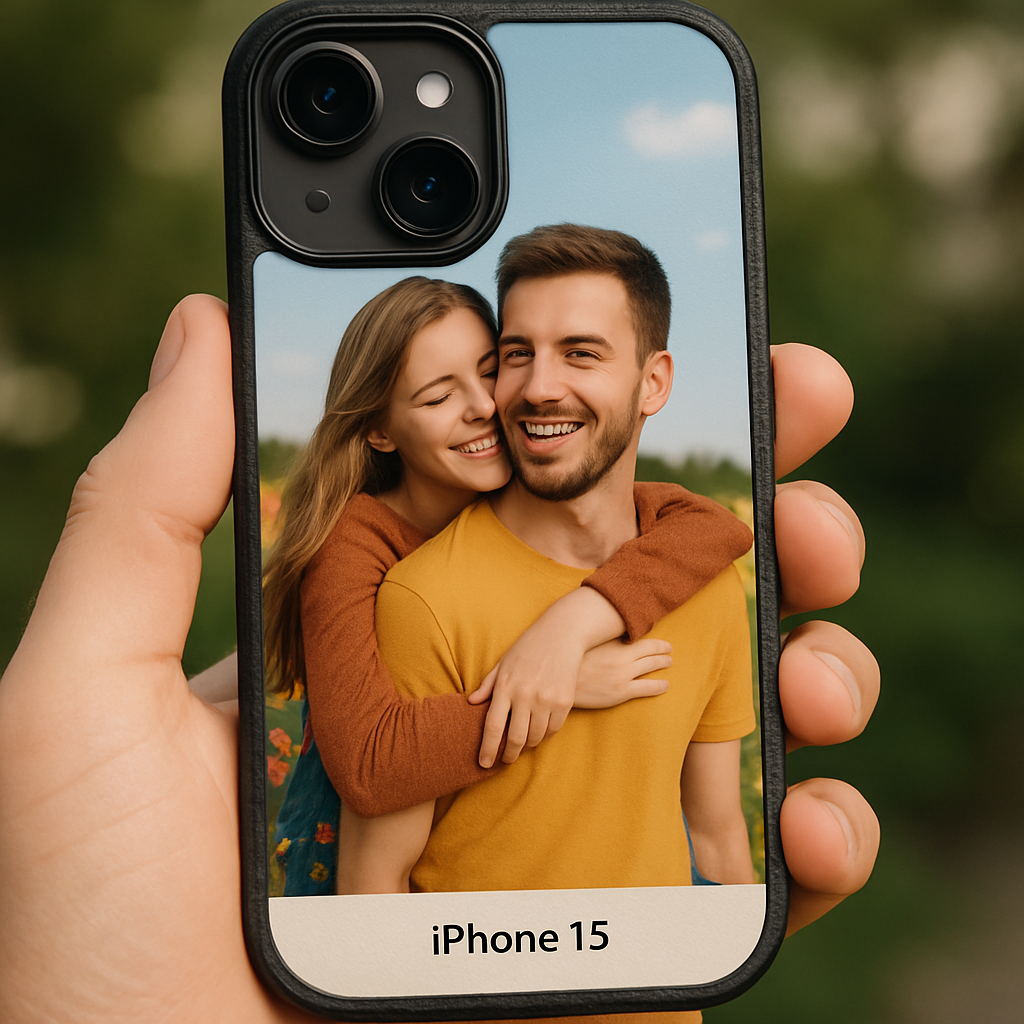
Okay, you’ve nailed the case material, now it’s time to dig out that perfect picture. You know the one – the candid snap of your niece mid‑laugh or that sunset that still makes you sigh. If you’re staring at a gallery of blurry selfies, don’t panic; we’ll get it camera‑ready together.
Why image quality matters more than you think
When you print a photo onto a case, the printer basically stretches the image over a tiny canvas. A low‑resolution photo will look pixelated, and you’ll end up with a case that feels cheap, not cherished.
According to Digital Trends’ case comparison, a crisp, high‑resolution image can boost perceived quality by up to 30% because the colors stay vibrant even after months of wear.
Step‑by‑step: Picking the right picture
1. Choose a photo with a clear focal point. If the main subject is too close to the edge, the camera cut‑out on the case will chop it off. Look for a composition where the key element sits in the middle third.
2. Check the resolution. Aim for at least 300 dpi at the final printed size. A quick way: open the file on your computer, right‑click → Properties → Details. If the dimensions are 1800 × 1800 px or larger, you’re good for most standard cases.
3. Mind the lighting. Soft, even lighting reduces harsh shadows that can become blotches once printed. If you have a photo taken in harsh midday sun, consider pulling back the exposure a notch in a free editor.
Real‑world examples
Sarah, a busy mom, selected a photo of her twins playing in the backyard. The original was 4000 × 3000 px, so even after cropping to fit the case’s rounded corners, it stayed sharp. She noticed the colors stayed vivid after a month of daily use.
Mark, a freelance photographer, tried to use a low‑light concert shot. The image was only 1200 × 900 px, and after uploading, the case looked grainy. He went back, chose a daylight portrait at 2500 × 2500 px, and the result was a crisp, gallery‑worthy finish.
Preparing the file
Most case‑makers accept JPEG or PNG. JPEG gives smaller file sizes, but if you’re worried about compression artifacts, PNG preserves every pixel.
Here’s a quick workflow you can follow in a free editor like GIMP or even the built‑in Photos app on macOS:
- Open the photo and duplicate the layer (just in case).
- Crop to a 1:1 square, keeping the subject centered.
- Resize to 2400 × 2400 px – this hits the sweet spot for most 6‑inch phones.
- Export as JPEG with 80‑90% quality or PNG if you prefer lossless.
If you’re not comfortable editing, there are online tools like Photopea that mimic Photoshop for free.
Pro tip: Test with a mock‑up
Before you hit “order,” most sites let you preview the image on a case template. Drag the file into the mock‑up and rotate it a few degrees. Does the subject stay clear? If the edges look fuzzy, go back and up‑scale or pick a different shot.
Another tip from designers: add a subtle border (2‑3 px) of solid white or black around the image. It acts like a safety net, preventing the camera cut‑out from nibbling into the main subject.
Checklist before you upload
- Image is at least 300 dpi at the printed dimensions.
- Key elements are at least 0.5 in away from the edges.
- File format is JPEG (80‑90% quality) or PNG.
- Color profile is sRGB – most printers use this standard.
- Preview looks sharp in the site’s mock‑up tool.
Got all that? Great. You’ve turned a random photo into a print‑ready masterpiece that will look amazing on your personalized photo phone case.
Step 3: Compare Printing Methods and Materials
Okay, you’ve got your case material sorted and your photo prepped. Now comes the part that feels a bit like choosing a paintbrush for a masterpiece – you need the right printing method to make that image pop and stay vibrant.
Ever wondered why some cases look like glossy museum prints while others fade after a week? The secret is in the technology that actually puts ink on the surface.
Screen printing – the old‑school heavyweight
Screen printing (or silk‑screen) pushes thick inks through a mesh stencil. It’s perfect for bold, solid colours and works best on flexible TPU or hard polycarbonate shells. Think of it like a stamp that leaves a slightly raised texture.
Pros: vivid colours on dark backgrounds, relatively low cost for large batches. Cons: each colour needs its own screen, so multi‑tone photos become pricey and the method can’t capture subtle gradients.
Read more about how screen printing works on Wikipedia’s screen printing guide.
Digital UV printing – the high‑resolution champion
UV printing sprays UV‑curable ink and instantly flashes it with ultraviolet light. The result is razor‑sharp detail, smooth gradients, and a glossy finish that sits on top of the case rather than soaking in.
It handles photographs beautifully, making it the go‑to for a personalized photo phone case. The downside? The ink sits on the surface, so heavy scratching can eventually wear it down.
Check out the tech behind digital UV printing on Wikipedia’s UV printing page.
Heat transfer – easy, but a bit fiddly
Heat transfer prints your image onto a special paper, then presses it onto the case with heat and pressure. It works on most plastics and even metal, and the image is fairly durable.
It’s a solid middle‑ground if you’re ordering just a few cases and don’t want to splurge on UV equipment.
Sublimation – the ink‑into‑plastic method
Sublimation actually turns solid dye into gas, which then bonds with the polymer of the case. The colour becomes part of the material, so it won’t chip or peel.
The catch? Only cases made from polymer‑coated substrates (usually TPU or hard plastic) will accept the dye, and the process needs a dedicated press.
Quick decision checklist
| Method | Best For | Typical Cost (per case) | Key Trade‑off |
|---|---|---|---|
| Screen printing | Bold graphics, solid colours, high‑volume runs | Low‑medium | Limited colour detail, extra screens for each hue |
| Digital UV printing | Photo‑rich designs, gradients, low‑to‑mid volume | Medium‑high | Surface ink can wear with heavy scratching |
| Sublimation | Durable, all‑over colour, vibrant photos | Medium | Requires polymer‑coated cases, special press |
So, which method feels right for you? If you’re ordering a handful of gifts for family, UV printing gives you that photo‑like quality without a huge setup fee. If you’re planning a bulk order for a school fundraiser, screen printing will keep the per‑case price low.
And don’t forget material compatibility. A TPU case will take sublimation and heat transfer with ease, while a hard polycarbonate shell shines under UV but can be a bit stubborn for screen inks unless you choose a specially pre‑treated surface.
Here’s a mini‑action plan:
- Identify your design complexity – is it a full‑color photo or a simple logo?
- Match the design to a method: photos → UV or sublimation; solid graphics → screen.
- Confirm the case material you chose earlier works with that method.
- Ask the printer for a sample swatch; a quick visual test saves disappointment later.
Remember, the goal is a personalized photo phone case that looks great today and still feels fresh next year. Pick the method that balances cost, durability, and visual fidelity for your specific project, and you’ll end up with a case that truly feels like it was made just for you.
Step 4: Customize Layout and Add Personal Touches
Now that you’ve chosen a printing method and verified your file, it’s time to make the case feel truly yours. This is where the layout becomes more than just an image – it’s a tiny canvas for memories, jokes, and little details that only you get.
Think about hierarchy
Ask yourself: what part of the photo or graphic should grab attention first? Most people look at the centre, then sweep outward. Put the main subject – a smiling face, a beloved pet, or a bold logo – in the middle third, and use the surrounding space for accents.
For example, Maya, a new mom, placed a pastel‑blue watercolor splash behind a candid shot of her baby’s first steps. The splash didn’t compete; it framed the feet and let the tiny shoes pop.
Add text or small icons
Short phrases work better than long sentences on a case that’s only a few inches wide. Think “Adventure awaits” or a single date. Choose a font that matches the vibe – a handwritten script for a scrapbook feel, or a clean sans‑serif for a modern look.
Tip: keep the text size between 10‑12 pt when printed at 300 dpi; anything larger can look cramped once the case curves.
Play with layers and borders
One trick designers love is a thin white or black border around the image. It acts like a safety net for camera cut‑outs and gives the design a “finished” look. If you’re feeling crafty, add a second layer – like a subtle pattern (dots, herringbone) at 20 % opacity – that only shows when you tilt the phone.
According to a layout guide from Printful’s custom phone‑case design tips, adding a low‑opacity texture can increase perceived depth by up to 15 % without raising production cost.
Use the HTVRONT heat‑press workflow for personal touches
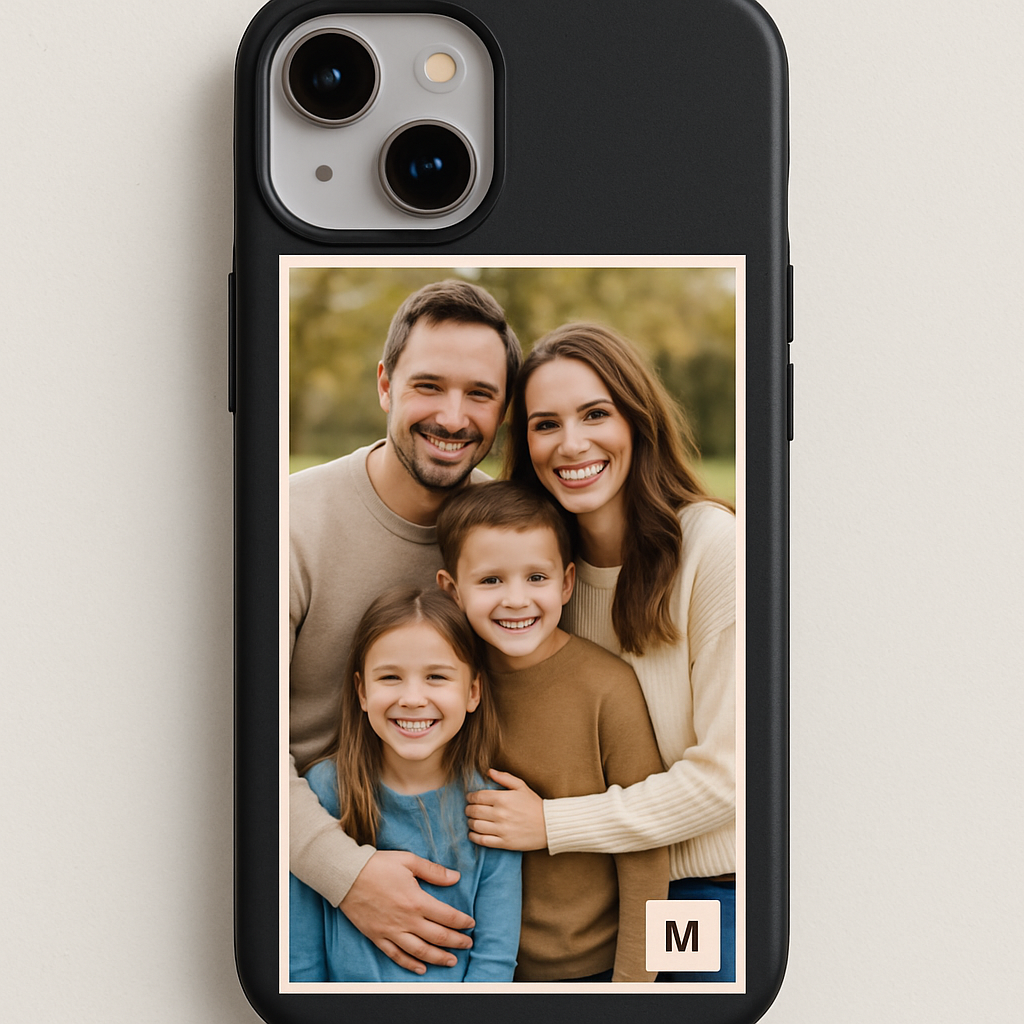
If you have a heat‑press like the HTVRONT H17, you can embed extra elements after the main image. Print a small monogram on sublimation film, then place it on top of the primary design before pressing. The vacuum system wraps the monogram around the edges, giving a seamless, edge‑to‑edge effect.
The step‑by‑step process is simple:
- Print your main photo on sublimation film as usual.
- Print a 1‑inch monogram on a second piece of film, mirroring it.
- Lay the main film on the case, then gently place the monogram film where you want it (usually near the bottom corner).
- Press for the recommended 310 seconds at 275 °F, then hot‑peel both layers.
When the press beeps, it’s go time!
Open the Press: Pop the lid open, keeping those gloves on because it’s hot!
Hot Peel: Peel off the sublimation film right away while it’s still warm. This “hot peel” gives you the cleanest transfer.
Remove the Lens Pad: Take off the tape and lens pad carefully.
Let It Cool: Set the phone case aside to cool before popping it on your phone.
My Tip: The vacuum tech wraps the design around the edges so smoothly—it’s like store‑bought, but way cooler because you made it!
Check readability on the go
Before you hit “order,” grab your phone and hold the mock‑up at typical viewing angles – portrait, landscape, and even upside‑down. Does the text stay legible? Does the border protect the camera cut‑out? If something looks fuzzy, go back to your editor and tweak contrast or move the element a few pixels.
Quick checklist
- Primary element centered, secondary accents within 0.2 in of edges.
- Font size ≤12 pt at 300 dpi, high‑contrast colour.
- Thin border (2‑3 px) added for safety.
- Optional monogram or badge printed on a separate sublimation layer.
- Preview on device; confirm readability.
When you follow these steps, your personalized photo phone case won’t just look good – it’ll feel like a tiny, hand‑crafted reminder of what matters most.
Michelle’s Party‑Plan‑It blog shows how this double‑layer technique gave her a Toy Story case with a tiny “Buzz” badge on the back, and the result stayed vivid after weeks of use source.
Step 5: Review Proof and Place Your Order
Alright, you’ve tweaked the layout, added that tiny monogram, and you’re staring at a mock‑up that looks just right. Before you click “Buy,” there’s one more ritual that separates a “maybe” from a “wow‑worthy” personalized photo phone case: the proof review.
Why the proof matters
Think of the proof as a rehearsal. It shows exactly how the ink, the substrate, and the curve of the case will interact once the heat press finishes its job. Skipping this step is like sending a birthday cake without tasting it first – you might end up with a dry sponge instead of a fluffy delight.
According to Adobe’s design‑proofing guide, a thorough proof can catch up to 90 % of visual errors before they become costly re‑prints. That’s a big reason why seasoned creators never ship without one.
Step‑by‑step proof checklist
- Zoom in to 100 %. Look at the edges of every element. Is there any pixel that bleeds into the camera cut‑out? If a tiny speck looks fuzzy, adjust the mask by a fraction of a millimeter.
- Swap devices. Open the proof on a phone, a tablet, and a desktop. Colors can shift dramatically between screens; what looks vibrant on a laptop might appear muted on a phone’s OLED.
- Print a test swatch. Most printers, including our own HTVRONT H17 workflow, let you order a single‑case sample for under €5. Seeing the ink on real plastic tells you instantly whether the contrast is enough.
- Check text legibility. If you used a script font for a date, hold the mock‑up at a 45° angle. Can you still read “09/12/2025” without squinting?
- Confirm colour consistency. Compare the proof’s HEX codes with the final product’s UV‑cured inks. A quick look at Printful’s colour‑matching page explains why some blues shift after curing.
Pro tip: always export your design as a PNG with an embedded sRGB colour profile and set the resolution to 300 dpi. That combination gives you the sharpest edge detail while keeping colours true across most consumer screens.
Real‑world examples
Emma, a mother of two, ordered a “first‑day‑of‑school” case for her daughter. She noticed the school logo’s red border blended into the pink background on her laptop screen. After zooming to 100 %, she added a 1 px black outline – a tiny tweak that saved her from a washed‑out final print.
Meanwhile, Jason, a freelance photographer, sent a proof of a black‑and‑white portrait to his client. The client flagged that the shadows looked “crushed” on the phone screen. Jason switched the file from 300 dpi to 350 dpi, re‑exported, and the proof revealed crisp details. The final case sold out in a week.
Placing the order with confidence
When the proof passes every bullet, it’s time to lock in the order. Here’s how to do it without second‑guessing:
- Log into your heartful.gifts account and navigate to the “My Designs” tab.
- Select the “Approve Proof” button – this tells the production team the file is final.
- Choose quantity, shipping speed, and any add‑ons (like a matching wrist strap).
- Double‑check the billing address – a typo here can delay delivery by days.
- Hit “Place Order” and note the confirmation number. Keep it in your email for any future tweaks.
Pro tip: add a note for the printer that says “Leave the monogram on the lower right corner, not the camera cut‑out.” Simple communication reduces the chance of a mis‑aligned badge.
What to do if something feels off
Even after you click “Order,” you still have a window to request a last‑minute change. Most print‑on‑demand services allow a 15‑minute grace period before the case goes into the heat‑press queue. If you spot a mistake after the order, contact support immediately – a quick email can save you a replacement cost.
And remember, a little extra time spent on proofing now means your loved one will get a case that looks exactly like the memory you wanted to capture, not a blurry “oops.”
Step 6: Care, Maintenance, and Swapping Cases
Why caring for your personalized photo phone case matters
Let’s be honest: a beautiful design loses its sparkle the moment it gets scratched or faded. Your personalized photo phone case is a daily memory‑keeper, so keeping it looking fresh protects both the image and the phone.
Studies show that regular cleaning can extend a case’s visual life by up to 30 % compared to neglectful use. TechRadar’s guide to cleaning phone cases explains how grime builds up and dulls colors over time.
Everyday cleaning routine (5‑minute max)
1. Gather a soft micro‑fiber cloth, a tiny dab of mild dish soap, and a spray bottle of 70 % isopropyl alcohol. No harsh chemicals – they can eat away at sublimated inks.
2. Lightly mist the cloth (not the case) with the soapy water, then wipe the surface in gentle circles. Focus on the camera cut‑out and edges where fingerprints love to linger.
3. Flip the case over, give the back a quick wipe with the alcohol‑dampened cloth, then let it air dry for a minute. The alcohol evaporates fast and removes oily residue without water spots.
4. Finish with a dry portion of the cloth to buff any lingering streaks. You’ll see the photo pop again, almost like a fresh print.
Special care for different materials
Silicone cases love a bit of lotion‑free hand wash. A quick rinse under lukewarm water and a gentle rub does the trick.
Hard‑plastic or polycarbonate cases benefit from the alcohol step because it won’t cloud the surface. Just avoid soaking – the edges can swell.
Fabric‑covered designs need spot‑cleaning only. Dampen a cloth with mild soap, dab the stained area, then let it air dry. If you’ve added puffy paint or glitter, a dry brush removes loose particles without smudging.
Protecting the photo during daily wear
Think about the last time your case hit a key or a rough pocket. That tiny impact can micro‑scrape the printed image. Here’s a quick habit: slip a thin silicone liner (the kind that comes with many cases) between the case and your phone. It adds a cushion and keeps the photo from rubbing directly against metal.
Another pro tip is to store the case in a soft pouch when you’re not using it. Even a simple cloth bag reduces dust buildup and prevents accidental scratches.
When to swap cases
Maybe you just got a new phone model, or the season calls for a fresh look. Swapping doesn’t have to be a hassle.
Step 1: Take a photo of the current case’s back. You’ll thank yourself when you want to reuse the design later.
Step 2: Log into your heartful.gifts account, go to “My Designs,” and click “Duplicate.” This creates a copy you can edit without touching the original file.
Step 3: Adjust the mock‑up to match the new phone dimensions (most platforms auto‑detect the model). If the new phone has a larger camera bump, shift the image a millimeter or two to keep the focal point clear.
Step 4: Order a single “test” case before committing to a full batch. That way you verify fit, camera clearance, and that the photo still looks crisp.
Real‑world examples
Emma, a busy mom, swapped her iPhone 13 case for an iPhone 14. She followed the duplicate‑and‑adjust method and discovered the new camera cut‑out was 0.3 mm wider. A tiny shift saved her from a mis‑aligned photo and kept the family portrait intact.
Jason, a freelance graphic designer, loves rotating designs every quarter. He keeps a spreadsheet of “case versions” and uses the same cleaning routine each month. After six months, none of his cases show fading, and his clients rave about the consistent vibrancy.
Quick checklist before you put your case back on
- Wipe with a dry microfiber cloth.
- Inspect the camera cut‑out for any debris.
- Check that the photo’s edges aren’t nicked.
- Make sure the case fits snugly without forcing.
Follow these steps and your personalized photo phone case will stay a conversation starter for years, not a faded souvenir.
Conclusion
We've walked through everything from proofing your design to caring for the finished case, so you now have a clear roadmap for a flawless personalized photo phone case.
Remember the three pillars: perfect mock‑up dimensions, a quick test‑case order, and a simple five‑minute cleaning routine. If you skip any of those, you risk a mis‑aligned camera cut‑out or a faded image.
Take Emma’s story as a reminder – a 0.3 mm tweak saved her family portrait from being crooked. Or think about Jason, who logs each version in a spreadsheet and never sees color drift after months of use.
Here are three bite‑size actions you can do right now:
- Open your design, double‑check the camera window, and export as a 300 dpi PNG.
- Order one test case before committing to a full batch.
- Give your case a micro‑fiber wipe and a quick alcohol dab every week.
Feeling inspired? Head over to How to Create a Personalized Custom Photo Phone Case That Stands Out for a refresher on design tricks and material tips before you hit “Place Order.”
And don’t forget to celebrate each milestone – a new case means a new memory captured.
With a little extra care, your personalized photo phone case will stay a conversation starter for years, turning everyday calls into cherished memories.
FAQ
What size image should I use for a personalized photo phone case?
Start with a 300 dpi PNG that’s built in the sRGB colour profile. Measure the exact width and height of your phone’s back – most print‑on‑demand sites list those numbers for each model. Add a 2‑3 mm safety border around the edges so the image isn’t cut off by the case’s curve or the camera cut‑out. When you export, keep the file size under 15 MB to avoid upload issues.
Can I edit my design after I’ve placed the order?
Most services give you a tiny window – usually about 15 minutes – after you hit “Place Order” before the design goes into the heat‑press queue. If you spot a typo or a colour shift, shoot a quick email to support and attach the corrected file. They’ll pull the job, swap the proof, and you’ll still get the same shipping timeline.
How do I make sure the photo doesn’t fade over time?
The biggest enemy of a vivid case is grime mixed with UV light. Wipe it down once a week with a soft micro‑fibre cloth dampened in a tiny dab of mild dish soap, then follow with a quick swipe of 70 % isopropyl alcohol on the back. Avoid bleach, harsh solvents, or direct sunlight for long stretches – those will leach colour fastness.
Is it okay to use my phone’s camera to preview the case?
A phone’s camera preview is handy, but it can trick you. The lens sits a few millimetres lower than the flat mock‑up, so edges may look perfect on screen and then get clipped on the real case. Open the design in a case‑builder tool, zoom to 100 %, and double‑check the camera window. Ordering a single test case lets you confirm the fit before you commit to a batch.
What if the case doesn’t fit my phone perfectly?
If the case feels loose or the camera bump hits the edge, you probably need to tweak the mock‑up dimensions. First, snap a photo of the current case, then go to “My Designs” and hit “Duplicate.” Adjust the artwork by a millimetre or two until the cut‑out lines up. Order one test unit – most printers will let you return or replace a mis‑fit without extra charge.
Are there any special care tips for silicone vs hard‑plastic cases?
Silicone cases love a gentle hand‑wash – a quick rinse under lukewarm water with a splash of mild soap, then pat dry. Hard‑plastic or polycarbonate designs should skip soaking; instead, use a micro‑fibre cloth lightly dampened with 70 % alcohol to lift fingerprints. Store any case you’re not using in a soft pouch or a zip‑lock bag to keep dust and scratches at bay.